
Adding text fields
Learn how to add text fields to your PDF form.
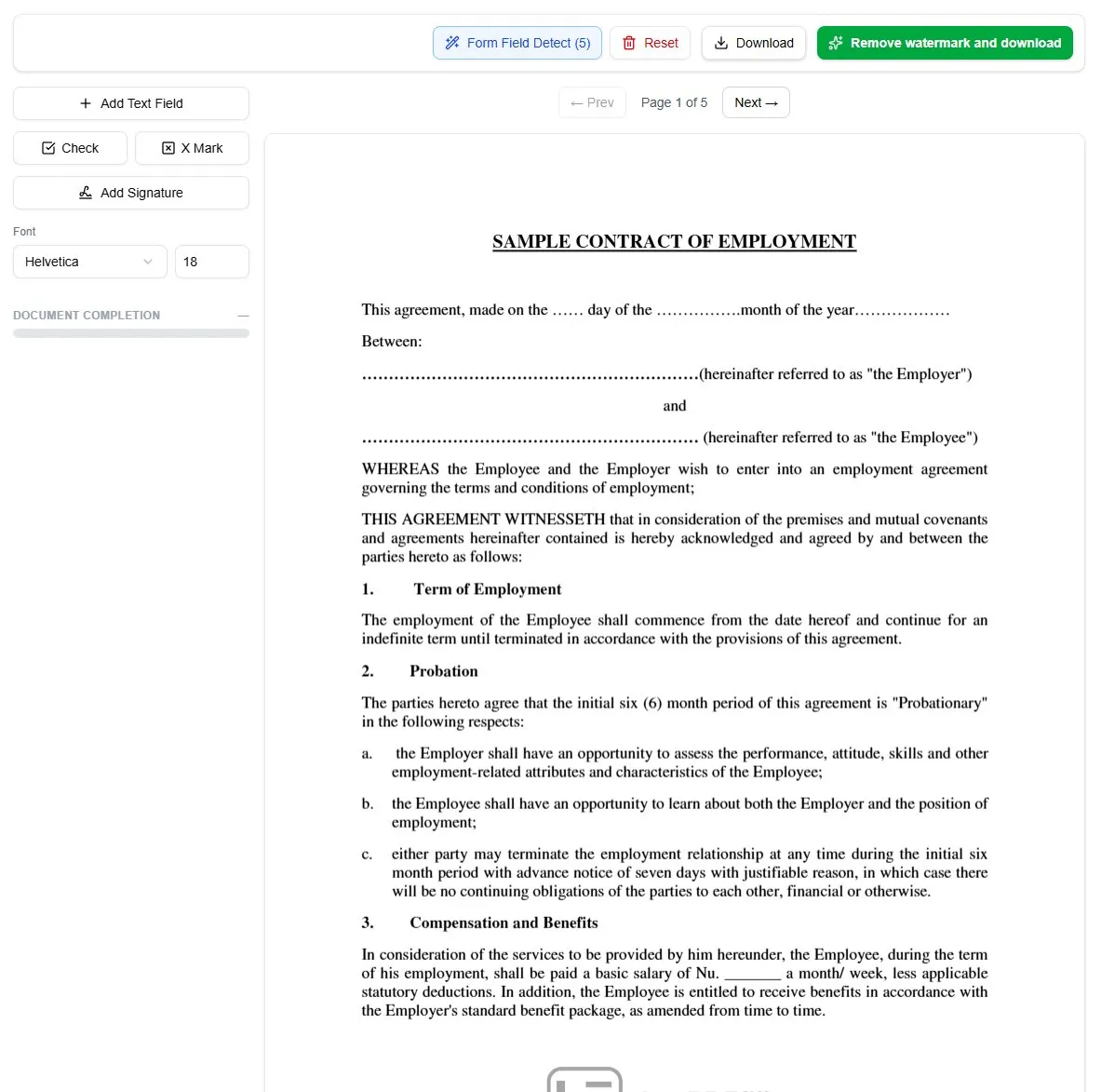
Fields can be added to the document in a couple of ways described below:
-
Clicking on the + Add Text Field button will start the field addition process. After clicking it, move the mouse over to the document and click on the specific place in the document where you would like to have the editable field. After that, you can move it around and rotate as you see fit.
-
Double click on the document to start the text field placement (left click).
-
Right-click on the document to bring up the context menu. Then select + Text field option to start the text field placement.
You can always cancel the placement by pressing the ESC key on your keyboard.
If you would like to delete a particular field, you can select it and press DEL key on your keyboard. You can also do it by clicking on the trash icon on the sidebar located on the left, or by right-clicking on the field and selecting the Delete field option.
Ready to start filling your PDFs?
Fill out PDF documents like a pro in minutes - no premium account needed.