
Beginner steps and PDF filler interface
Learn the beginner steps and how to navigate the PDF filler interface.
You can start working on your PDF form by simply pressing the Fill PDF Now button in the top right corner of the website.
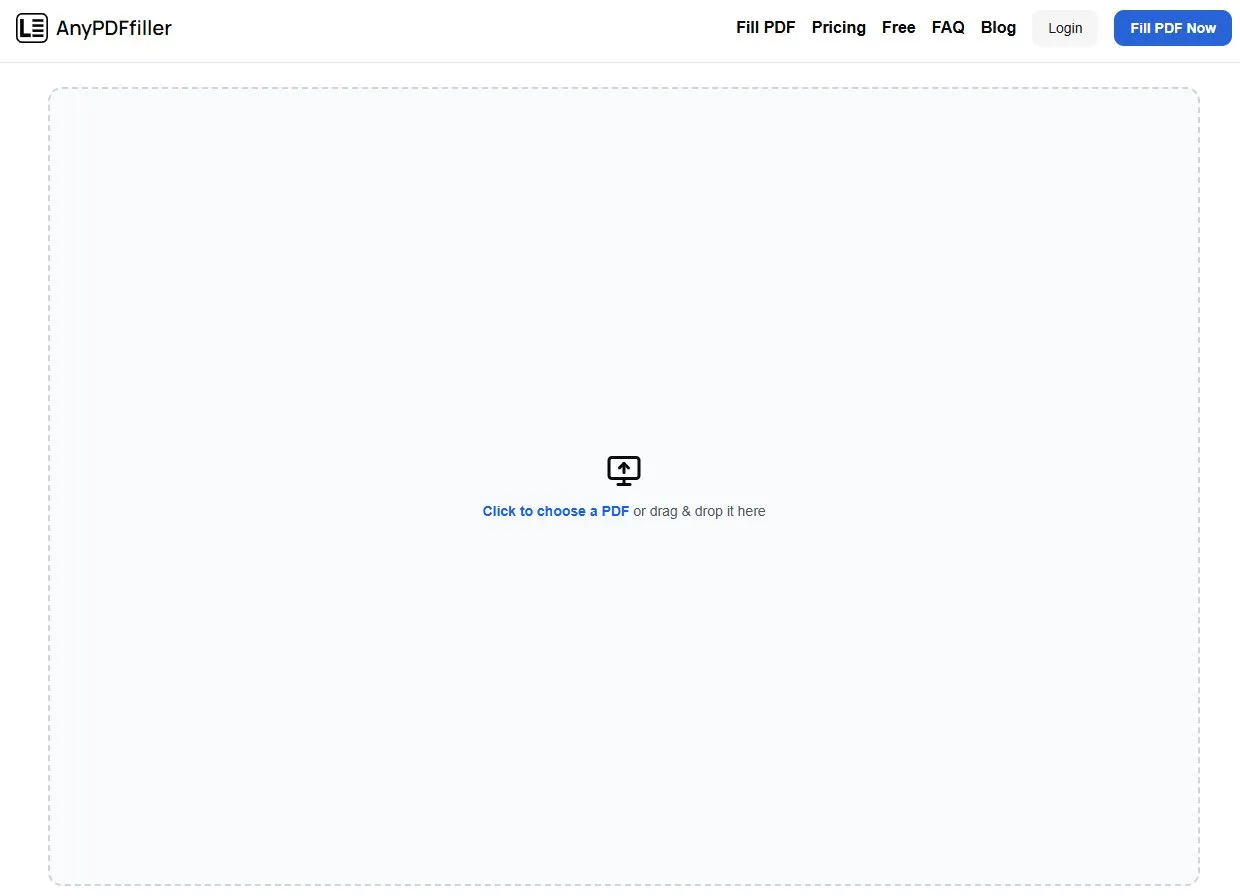
The first step to start creating is to upload your PDF file. You can drag and drop your file from your computer or click on the upload area. A file prompt will show up and ask you to select your file.
NOTE
We do not store your PDF files anywhere. Your files are private and secure.
Editor features
After uploading your PDF document, the tool should become visible and the website interface should turn into the PDF edition mode.
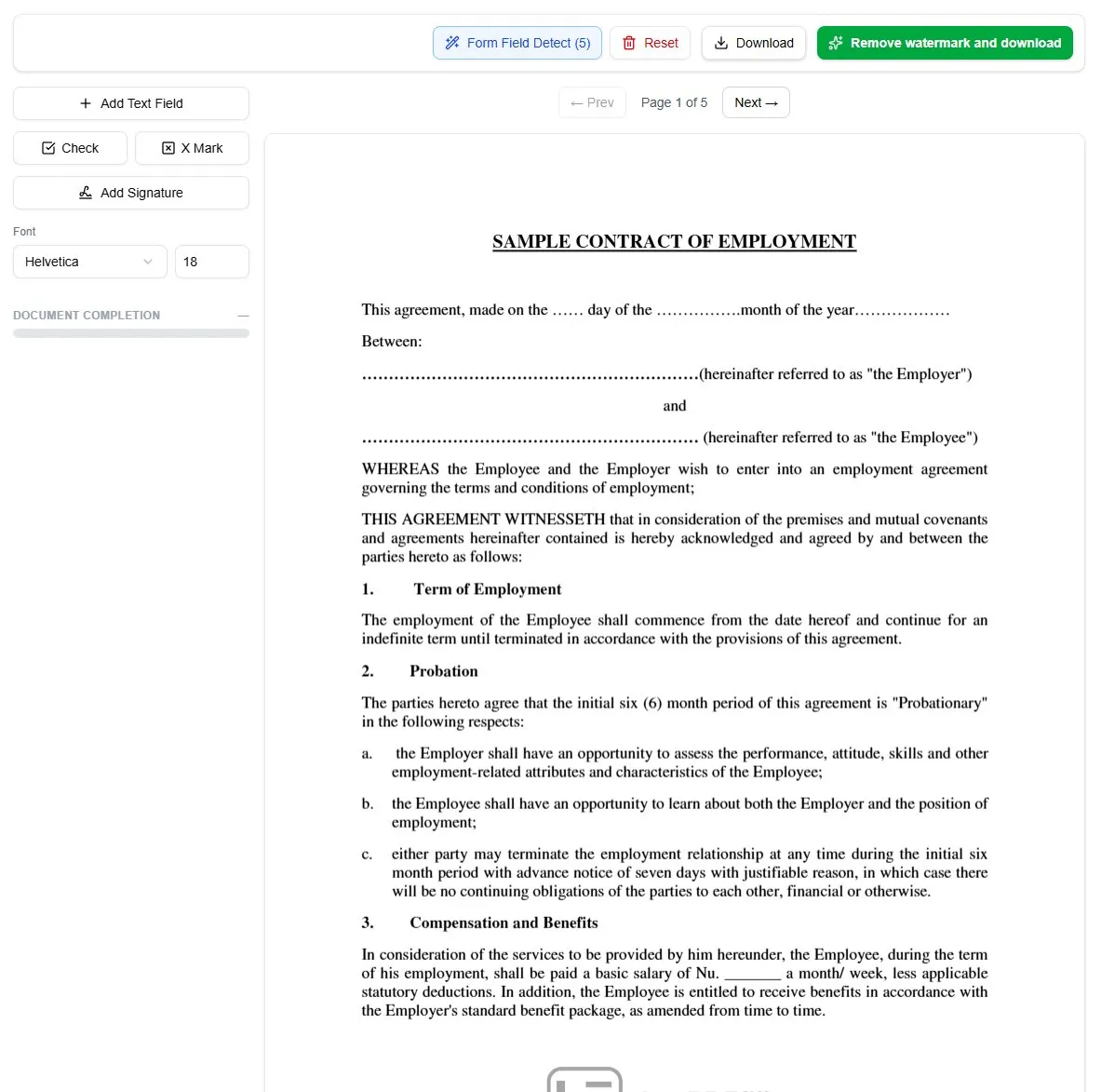
Following fields and buttons should be available in the PDF edition mode:
- Add text field - clicking on this button allows you to add a new text field to the PDF.
- Check - add checks to the PDF document.
- X Mark - add X marks to the PDF document.
- Add signature - add hand-written signature to the document.
- Font - modify the style and size of the font used in text fields.
- Document completion - visual representation of how many fields you have to fill in to complete the document.
Additional controls are available in the topbar of the editor:
- Form field detect - use advanced algorithm to detect fillable text fields in the document. The PDF is processed and the fields are located and tagged for you.
NOTE
The base version of the AnyPDFFiller platform allows you to perform 5 detections per week.
- Reset - remove the current PDF document from the editor. This clears all of your created text fields and starts the process anew.
- Download - download the filled PDF document with watermark.
- Remove watermark and download - proceed to the premium subscription purchase screen.
IMPORTANT
The premium version of AnyPDFFiller allows you for way more than the base version:
- higher field detection limits
- saving projects
- download PDF without watermark
- quickly fill documents using templates and data sets
Context menu
Use your mouse and right-click on the PDF document to bring up the context menu.
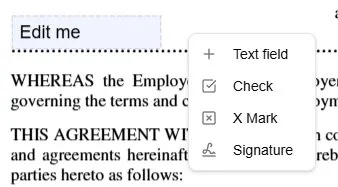
Context menu allows you to perform fast actions without having to move your mouse away from the document.
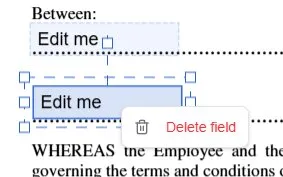
When right-clicking on the text field, you can also easily delete it from the document.
Fields sidebar
After you create some text fields, they will show up as cards on the left side of the screen.
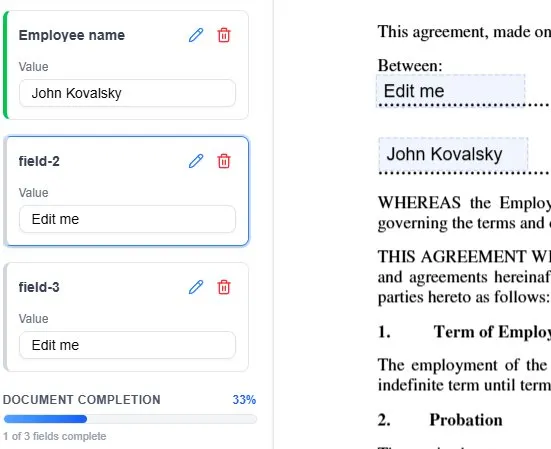
From the sidebar, you can modify the label of the field by clicking on the pencil icon and typing it in (e.g. “Employee name”).
You can also delete the fields by clicking on the trash icon. Type in the value to make it appear on the document.
The color on the left side of the field card displays whether the field has been filled out or not. Green is for completed fields, while grey is for fields that have yet not been touched.
Ready to start filling your PDFs?
Fill out PDF documents like a pro in minutes - no premium account needed.